 DocuWrench
01 / HOME
Start the day with a plan.
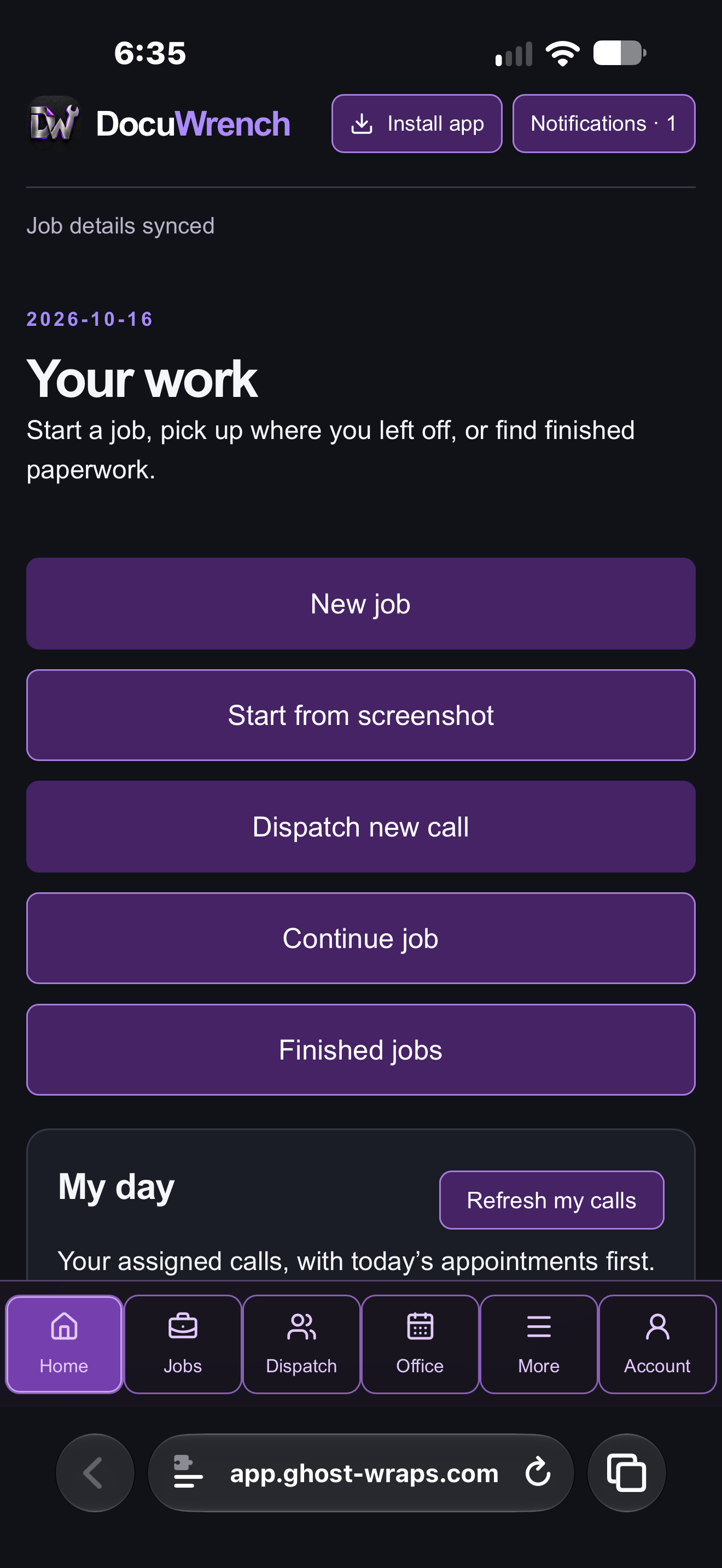
Start a job, continue work or find finished paperwork.
Actual app screen · cropped for presentationDocuWrenchBY GHOST WRAPS
FIELD NOTES. FINISHED PAPERWORK.
Capture the work, photos and charges in DocuWrench. Carry the finished worksheet into an invoice draft—without rebuilding the job from scratch.
Coming soon for iPhone & iPad
01Five included worksheets & your own forms
02Job photos, notes & dictation
03Estimates, invoices & receipts
THE FIELD. THE OFFICE. THE FINISHED PAPERWORK.
Real DocuWrench screens and sample documents, from the first call to the invoice.
DocuWrench01 / HOME
Start a job, continue work or find finished paperwork.
Actual app screen · cropped for presentationDocuWrench02 / DISPATCH
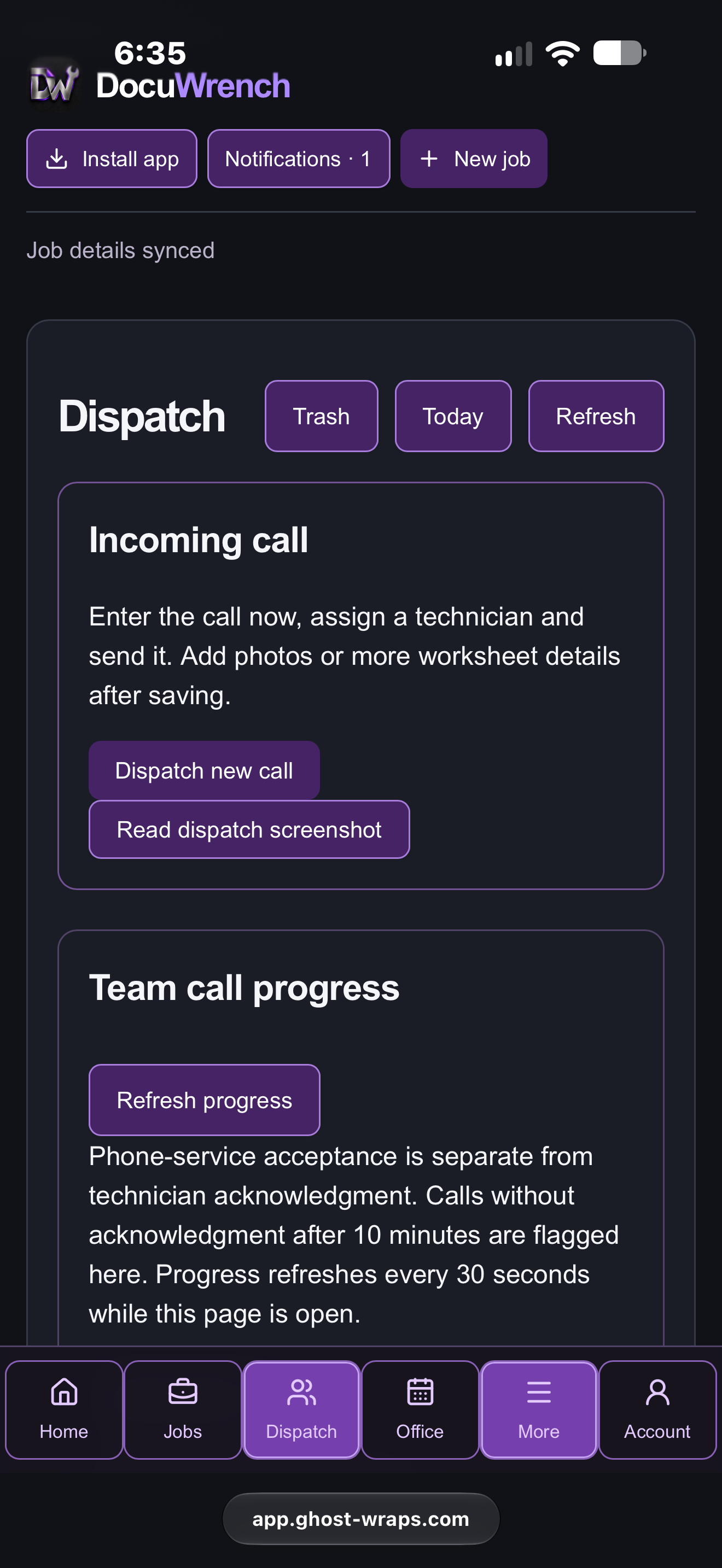
Capture the call and assign a technician from one place.
Actual app screen · cropped for presentationDocuWrench03 / OFFICE
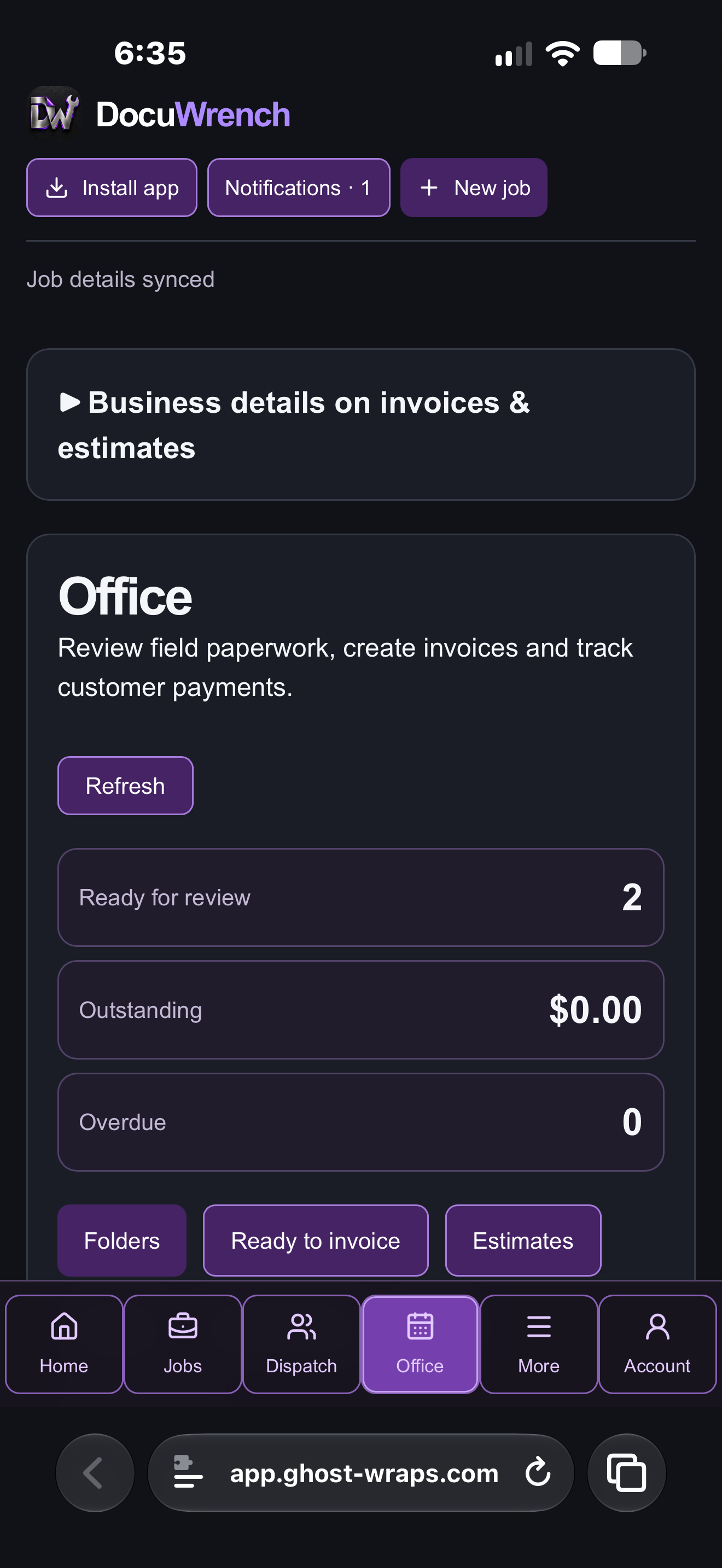
Review completed field work and prepare the billing.
Actual app screen · cropped for presentationDocuWrench04 / TOOLS
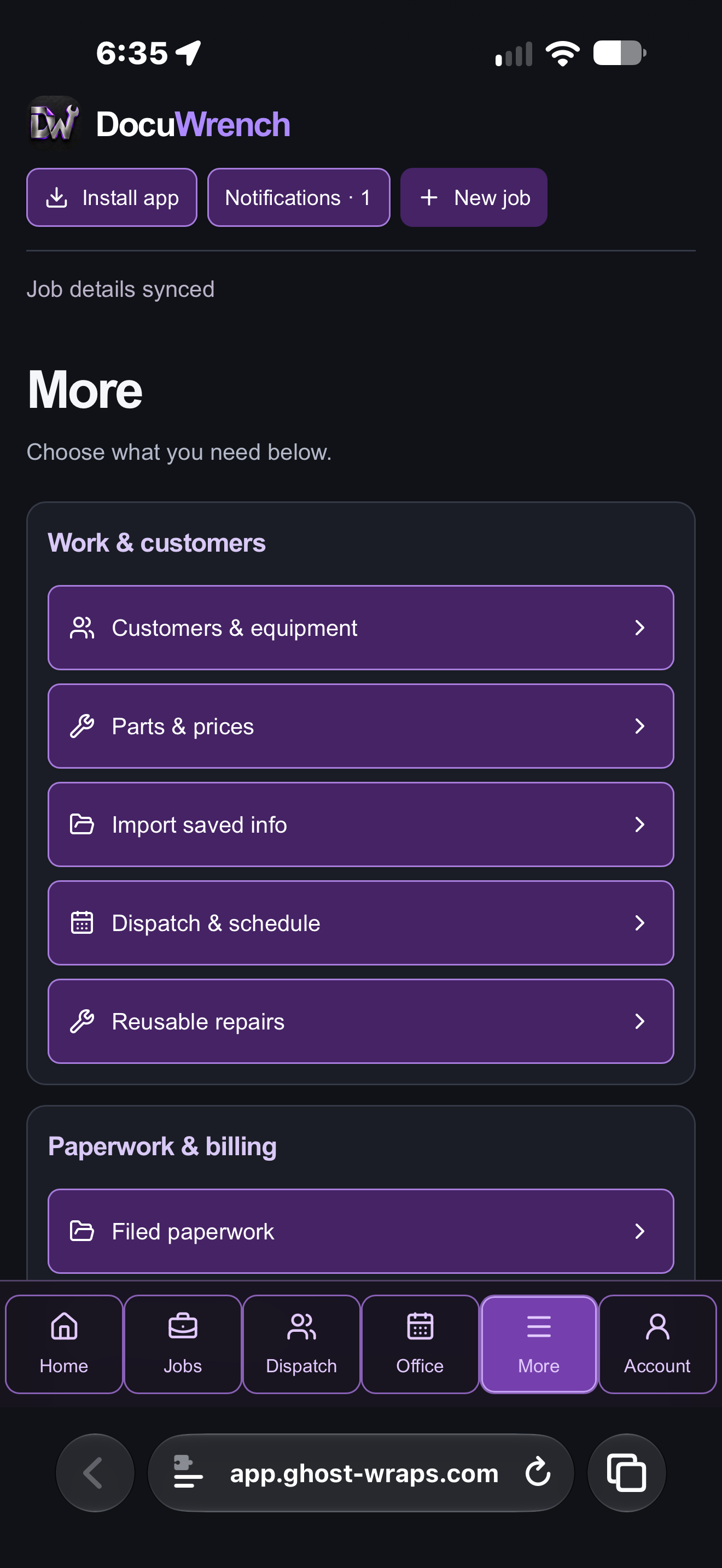
Customers, equipment, parts, prices and reusable repairs.
Actual app screen · cropped for presentationDocuWrench05 / WORKSHEET
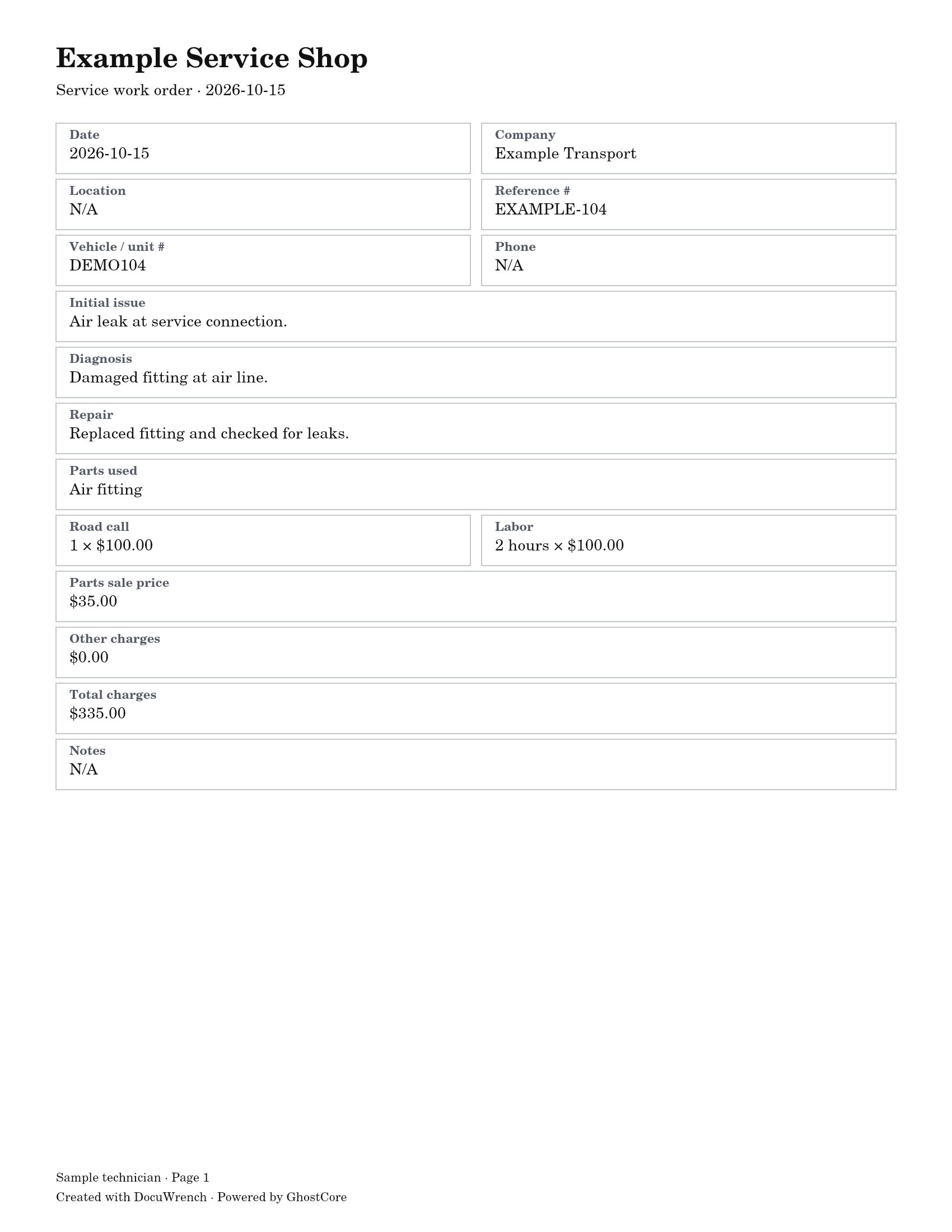
Customer, equipment, work and charges in a readable record.
Explore the full-size paperwork ↗DocuWrench06 / INVOICE
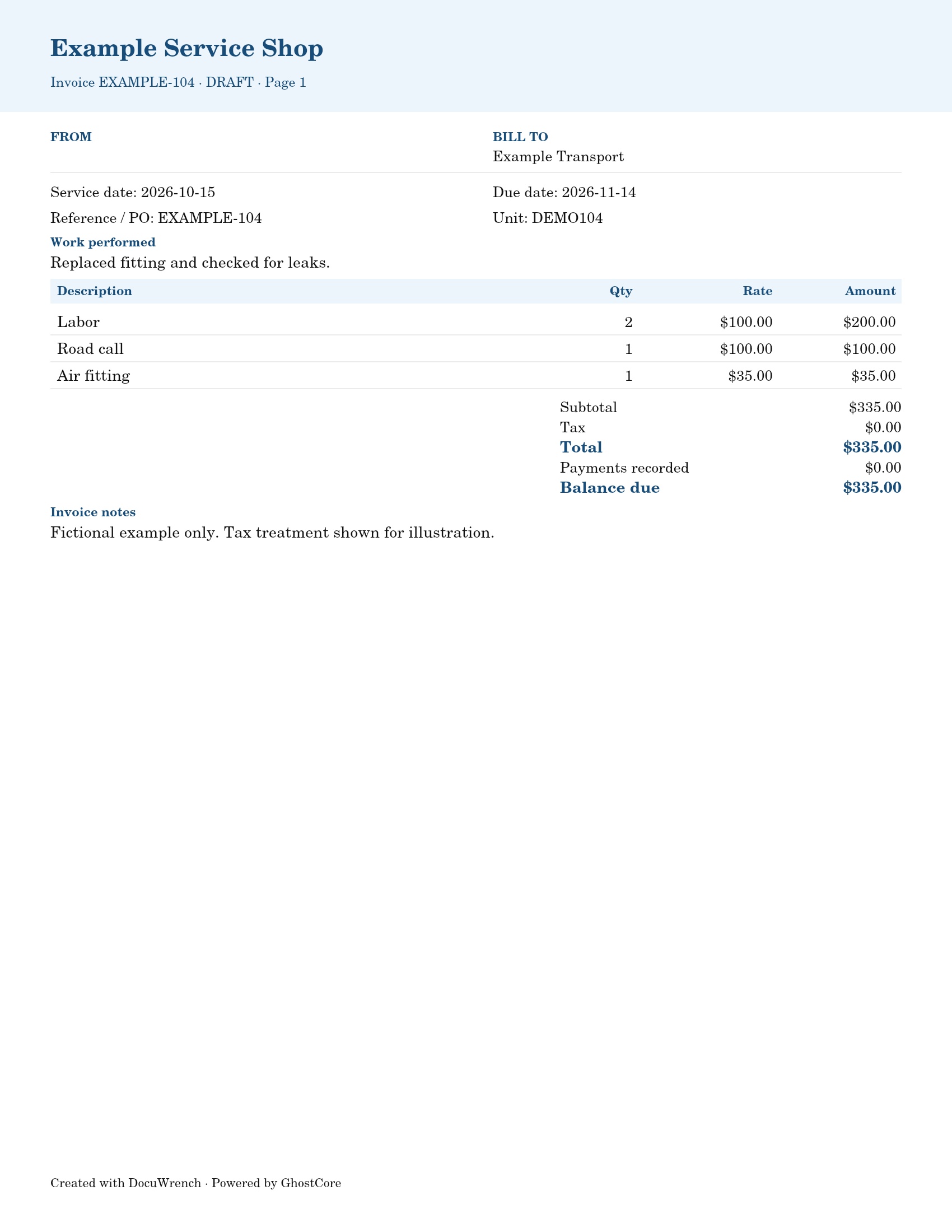
Review a linked invoice draft before sharing or printing.
Explore the full-size paperwork ↗Actual web app screens and document layouts. Document examples use fictional customer information. Industry photography is illustrative. Features depend on package and workspace role; the iPhone and iPad app is coming soon.
BUILD YOUR TEAM
Bring workers into a business workspace, use employee names and give dispatch responsibilities to the people handling calls.
ONE JOB. FROM FIELD TO OFFICE.
The customer, unit, repair description and saved charges carry into a linked invoice draft. The office reviews the details before billing.
Record the repair, photos, parts, labor and other charges. Review the worksheet, then finish the job.
Open Ready to invoice in Office and choose Create invoice from job. The saved details come with it.
Check billing details, dates, charges and taxes. Mark the reviewed invoice billed, then preview, share or print.
THE FINISHED RESULT
Example Transport · Unit DEMO104
Fictional job · $335 total
The issue, diagnosis, repair and charges stay together.
Enlarge worksheet (full-size image)The same customer, unit, repair and charges, ready for office review.
Enlarge invoice (full-size image)Actual DocuWrench document layouts with fictional data and illustrative rates. Appearance varies by design. Invoice creation requires Office or Full access.
The invoice links back to the field job. Finish the updated worksheet, then update the invoice draft from the latest job before billing. Issued invoices retain their original charges.
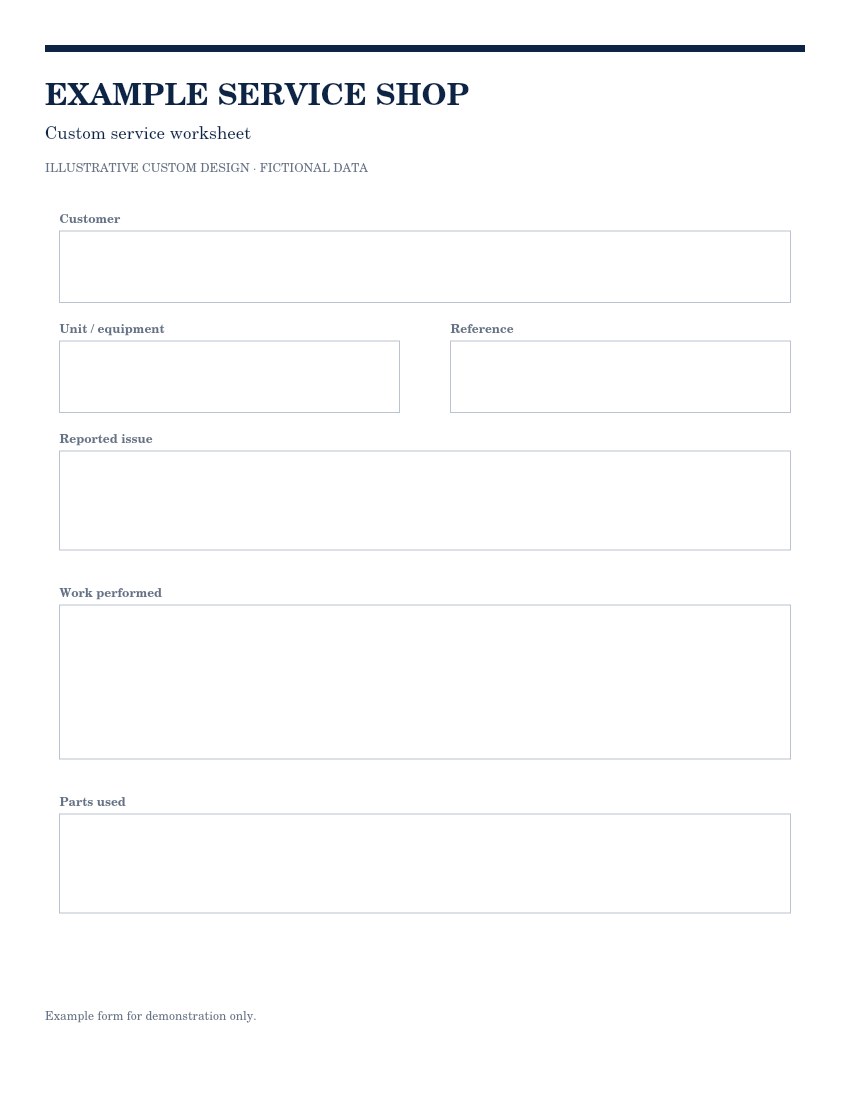
KEEP THE FORM YOU KNOW
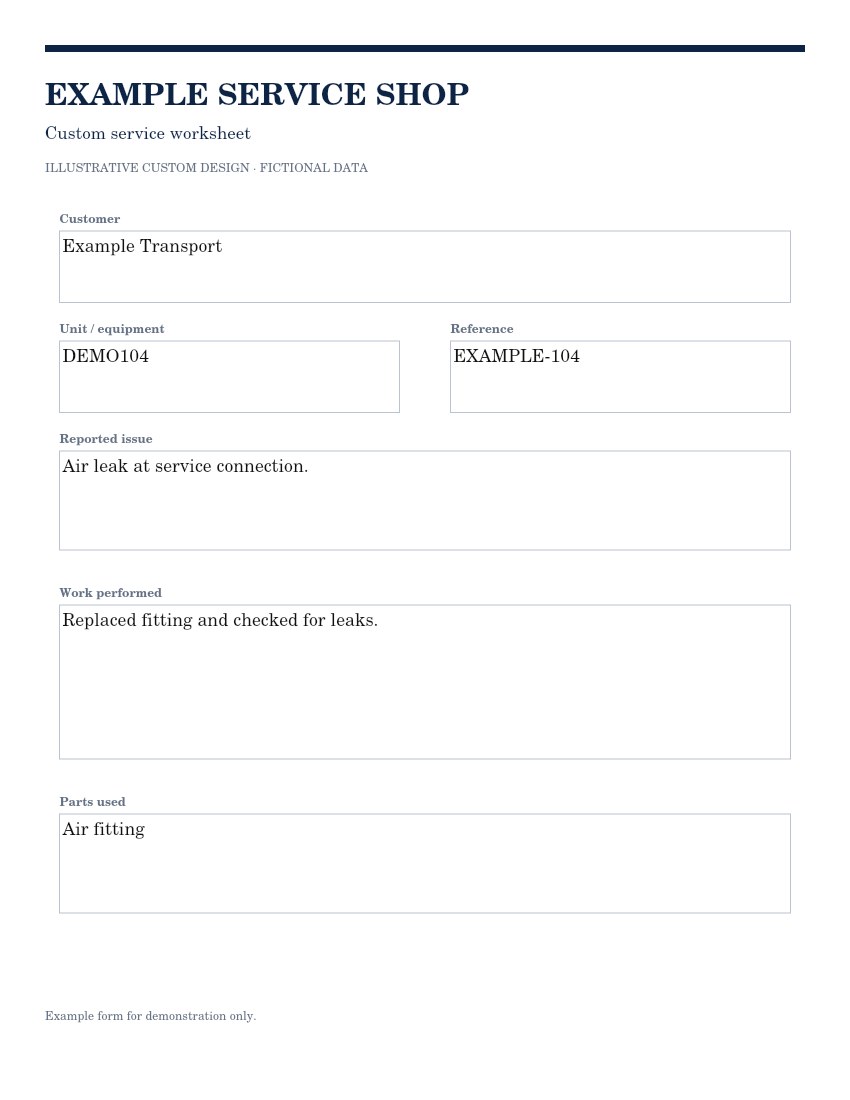
Bring a clear blank PDF or photo of your own form. Review the fill-in spaces, check the completed preview, then save the design for your jobs.
Illustrative custom design with fictional data. Filled using DocuWrench’s field renderer. Form setup requires review; appearance depends on your original form.
CHOOSE YOUR WORKFLOW
Start with the tools that match your responsibilities.
FIELD PAPERWORK
For the person doing the repair.
Field tools only. Office invoicing is not included.
BILLING & ORGANIZATION
For the person handling the paperwork.
Office tools only. Field worksheet tools are not included.
THE COMPLETE WORKFLOW
For a connected field and office.
Both toolsets. Access follows each team member’s role.
Package features and workspace permissions work together: mechanics handle assigned field work; authorized office staff handle billing.
PRACTICAL ANSWERS
The submitted app is for iPhone and iPad. Availability will be announced after Apple review. An Android release date has not been announced.
Yes. Upload a clear blank PDF or photo of your form, review the fill-in spaces and check the example before saving. Field worksheets are available with Mechanic and Full; Office and Full support invoice, estimate and receipt designs.
Yes, field tools support job photos. Photos waiting to upload remain on the device until the upload succeeds. Reconnect and check the save status before removing local app data.
Yes. A shared workspace supports owner, office and mechanic roles. Full includes field and office tools; the owner assigns access so mechanics handle their assigned work and office staff handle billing. An employee folder organizes paperwork; it is separate from a person’s login access.
Yes. Review the document preview, then use the available download, share or print controls. On supported devices, you can share the finished PDF through an app you choose. Check all pages and confirm sending in that app.
Those integrations are planned and are not included as available launch features. This page describes the tools in the submitted app.
HERE TO HELP
Tell us your device, what you were doing and any error message. Please leave out passwords and private customer documents.
mike@ghost-wraps.comLearn how DocuWrench handles the records you add and how access works within your business.
Privacy policy Terms of use